Tools Management
The Tools page is where you can view and manage the tools available on the platform.
View the Tools List
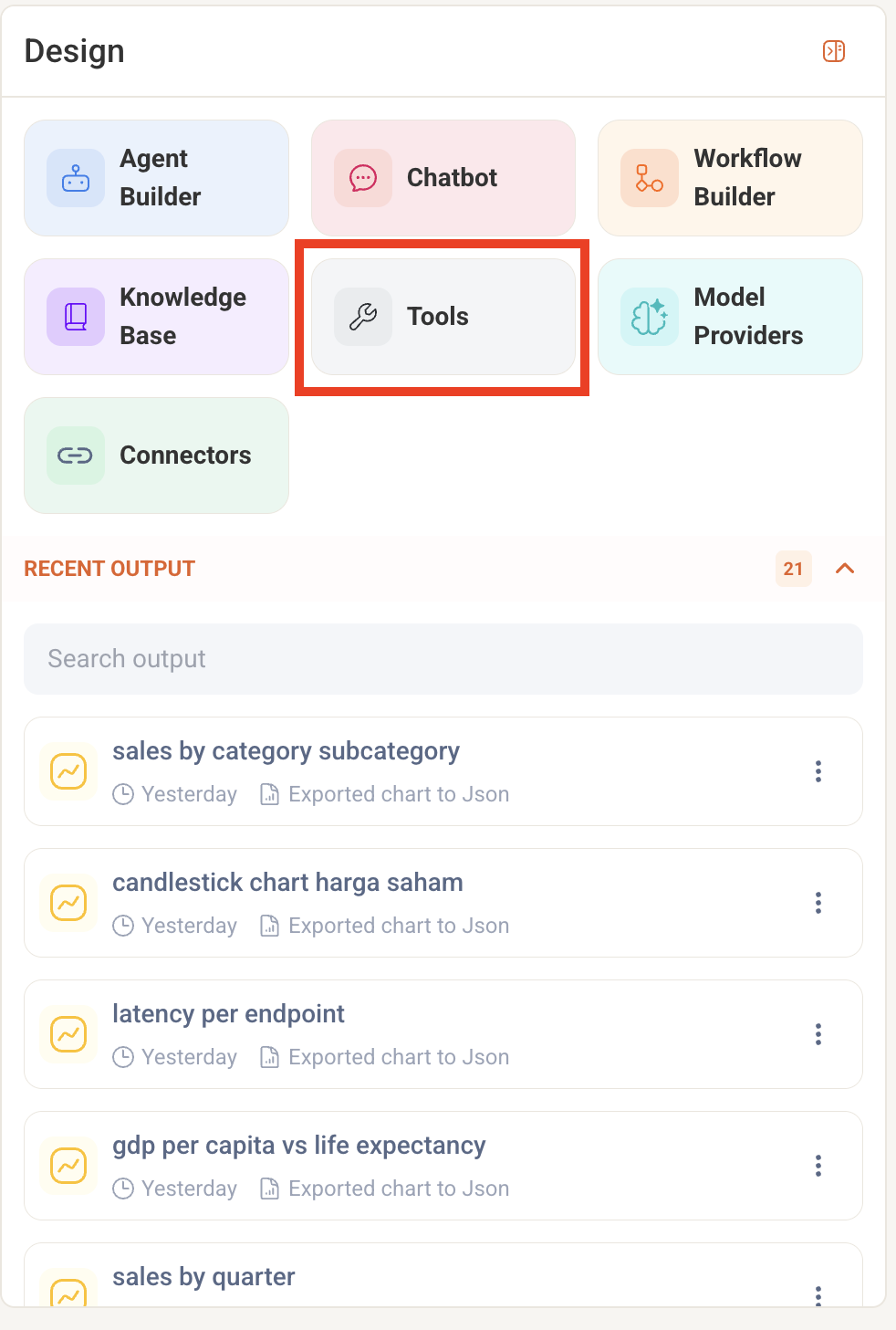
Open Tools from the right panel.
The list page shows a + New Tool button, a Search here field, and the Tools List with the total tool count.
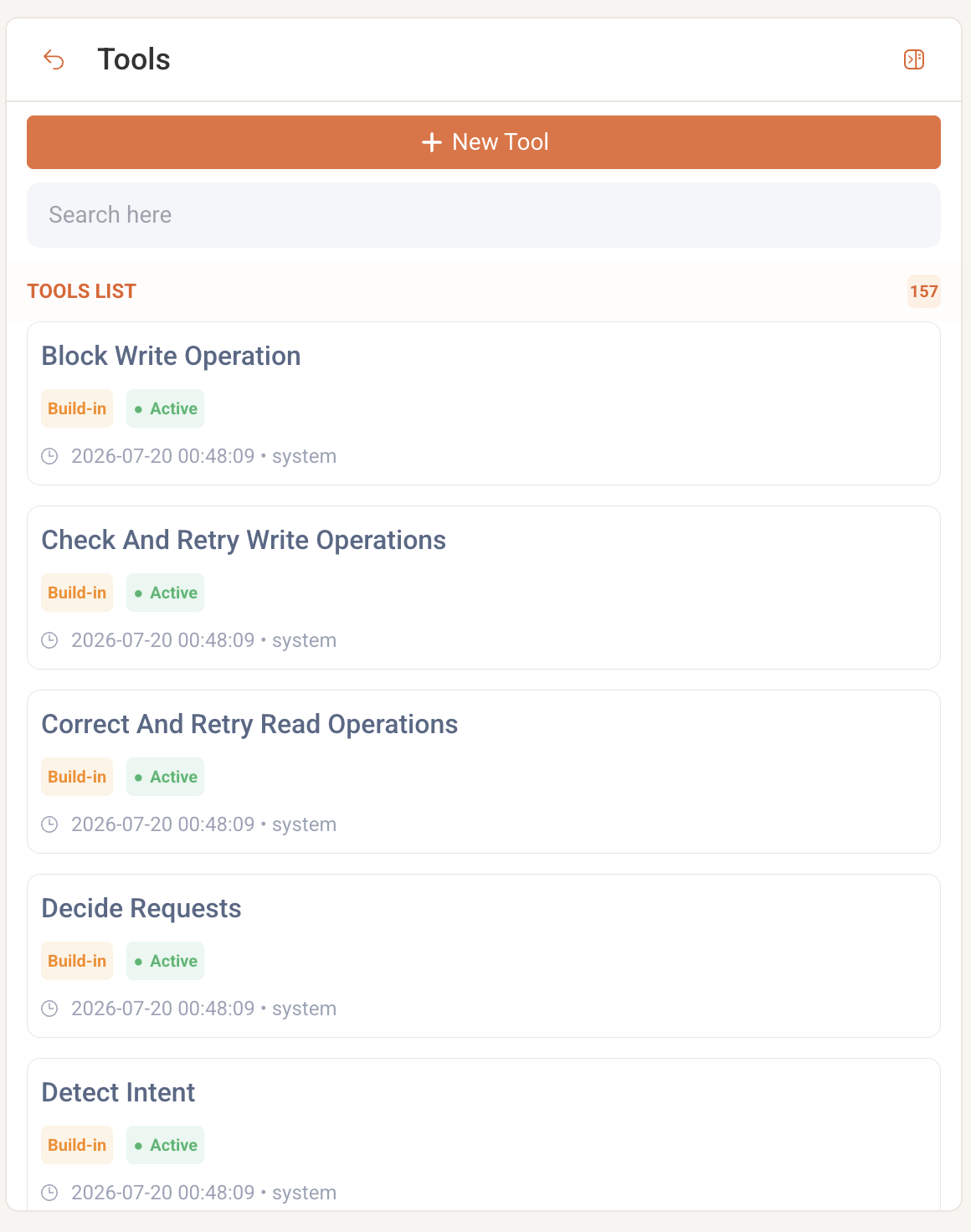
Each tool card displays:
- Name — the tool's name
- Type badge —
Build-inorCustom - Category badge — e.g.
REST API - Status —
Activeor inactive - Timestamp & author — last updated time, and the author
Create a New Tool
Click + New Tool on the Tools List page. This opens the Add New Tool form.
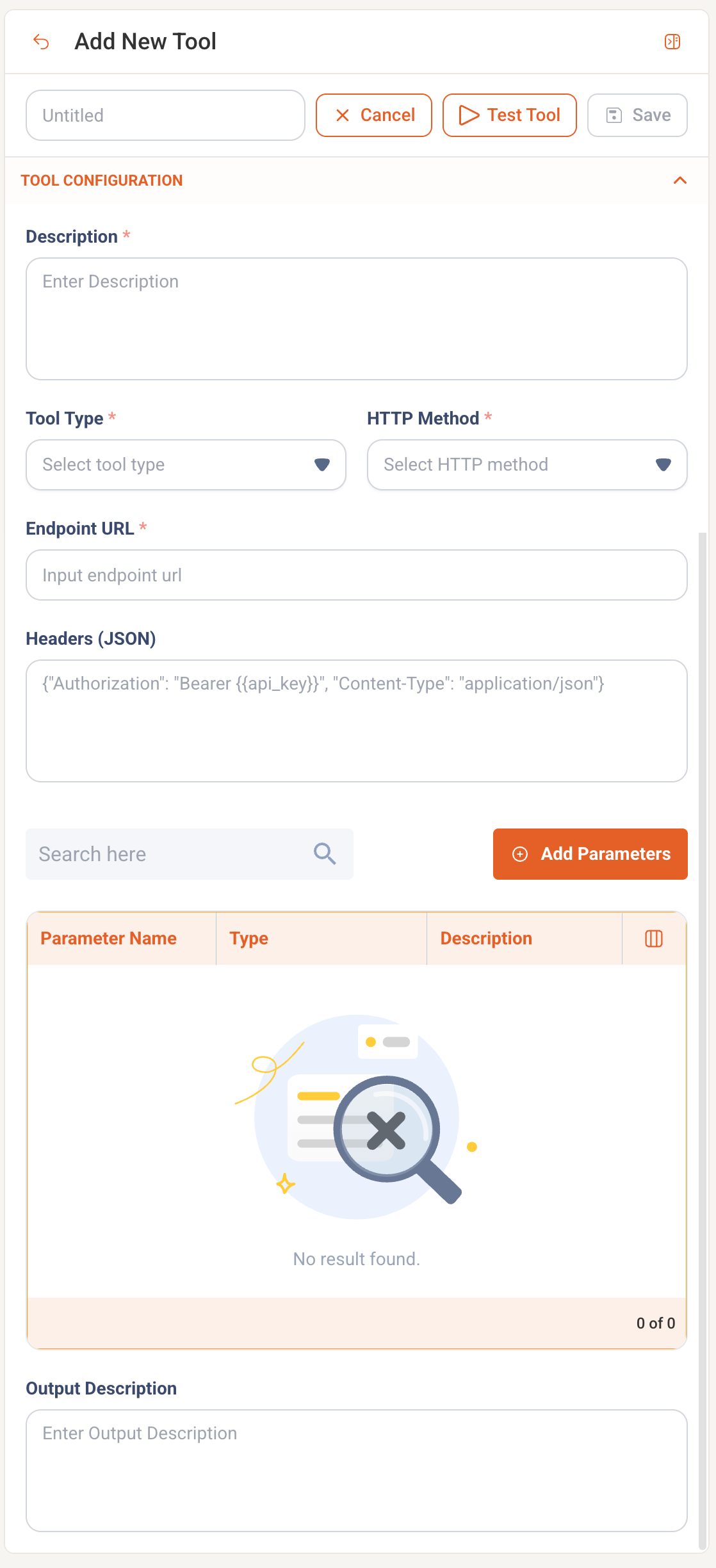
Fill in the following fields:
| Field | Required | Description |
|---|---|---|
| Description | Yes | A short description of what the tool does |
| Tool Type | Yes | The kind of tool, e.g. REST API |
| HTTP Method | Yes | The HTTP method used for the request |
| Endpoint URL | Yes | The API endpoint the tool calls |
| Headers (JSON) | No | Request headers as a JSON object |
| Parameters | No | Input parameters the tool accepts |
| Output Description | No | A description of the tool's output |
Add a Parameter
Parameters define the input values that the tool accepts when it is called.
- Click + Add Parameters. A new input row appears in the table.
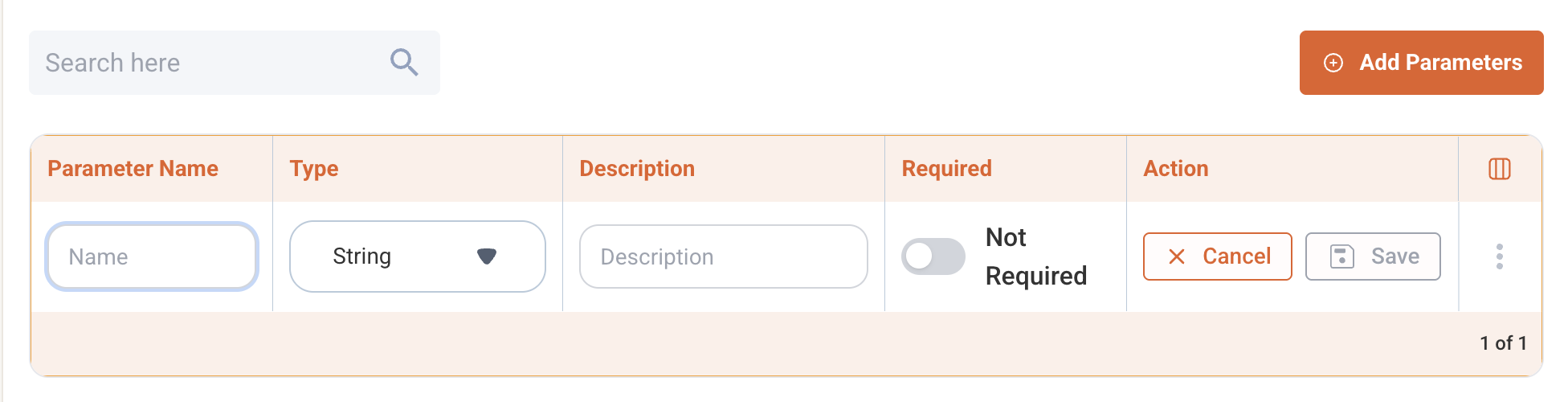
- Enter the parameter Name.
- Select a Type from the dropdown, e.g.
String. - Enter an optional Description.
- Toggle Required on if the parameter must be provided when the tool is called. It defaults to Not Required.
- Click Save on the row to keep the parameter, or Cancel to discard it.
Once the form is filled in:
- Click Test Tool to verify the configuration before saving (optional).
- Click Save to create the tool, or Cancel to discard it.
Edit a Tool
warning
Editing is limited to custom REST API tools.
Only tools with category REST API can be edited.
To edit a custom tool:
- Hover over a tool card tagged
REST API. - Click the Edit (pencil) icon on the right side of the card.
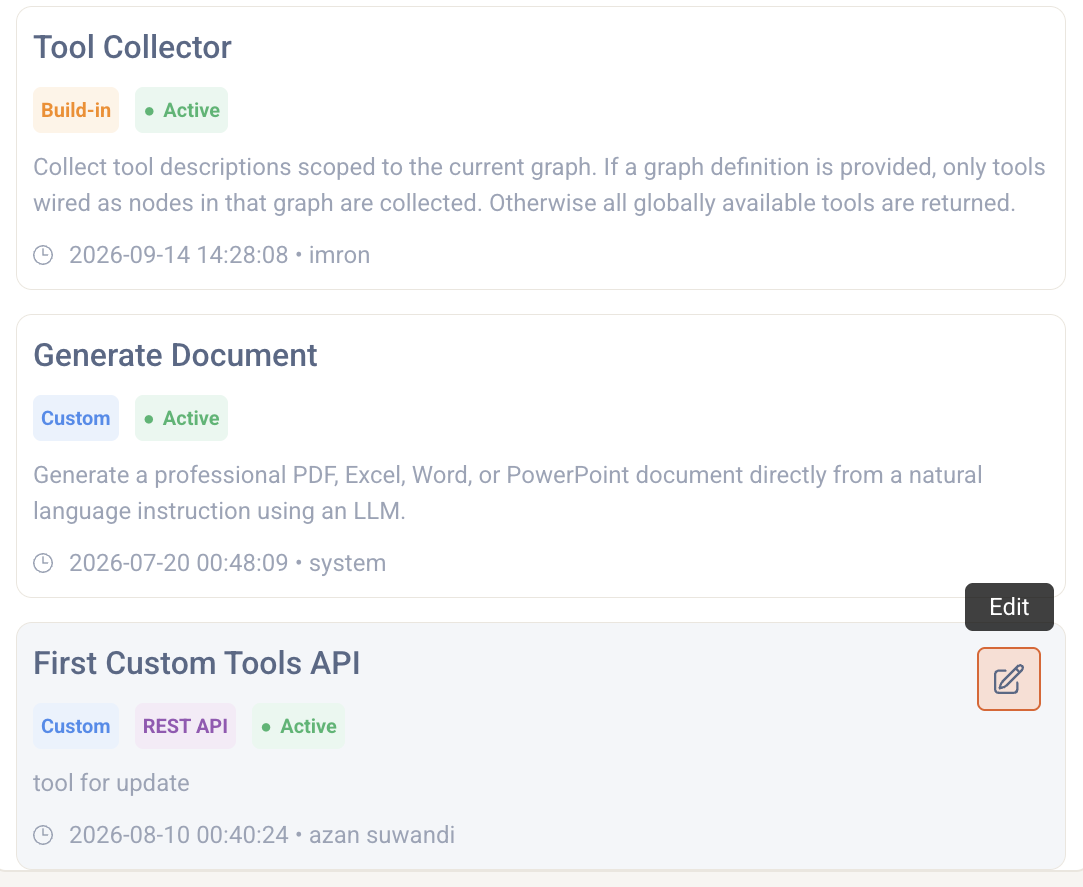
- The Edit Tool form opens pre-filled with the tool's existing data. Update the fields the same way as in Create a New Tool.
- Click Save to apply the changes.
